

Today we are releasing Files v4.2 for all users. Existing users will see an update icon in the top-right of the app. New users can grab it from our download page or the Microsoft Store. If you’d like to support the project, you can also sponsor us on GitHub.
Contents
- What’s new in Files v4.2
- Tree View sidebar
- Open With toolbar flyout
- Drag a tab to create a new pane
- Open folders in the other pane
- Open in new pane improvements
- Always show file extensions when renaming
- Media file metadata improvements
- Breadcrumb bar improvements
- Search in Toolbar Customization
- Cycle layouts with the scroll wheel
- Reverse tab scroll direction
- Improved tab tear off
- Improved continue where you left off
- Network Discovery banner
- Other highlights
- Fixes
What’s new in Files v4.2
Tree View sidebar
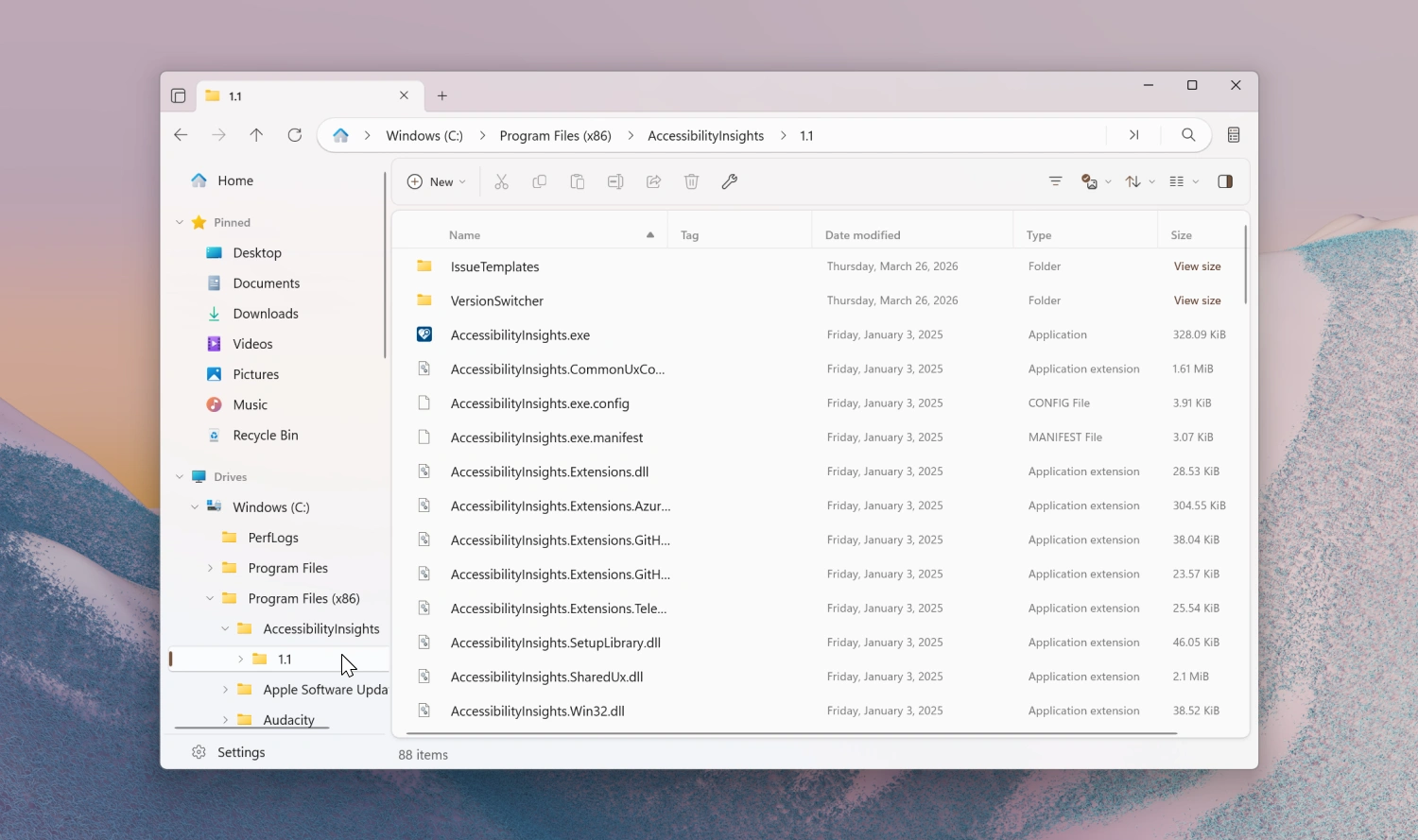
The sidebar now includes a new Tree View that displays your folders in an expandable hierarchy, making it easier to navigate deeply nested directories without leaving the current location.
Open With toolbar flyout
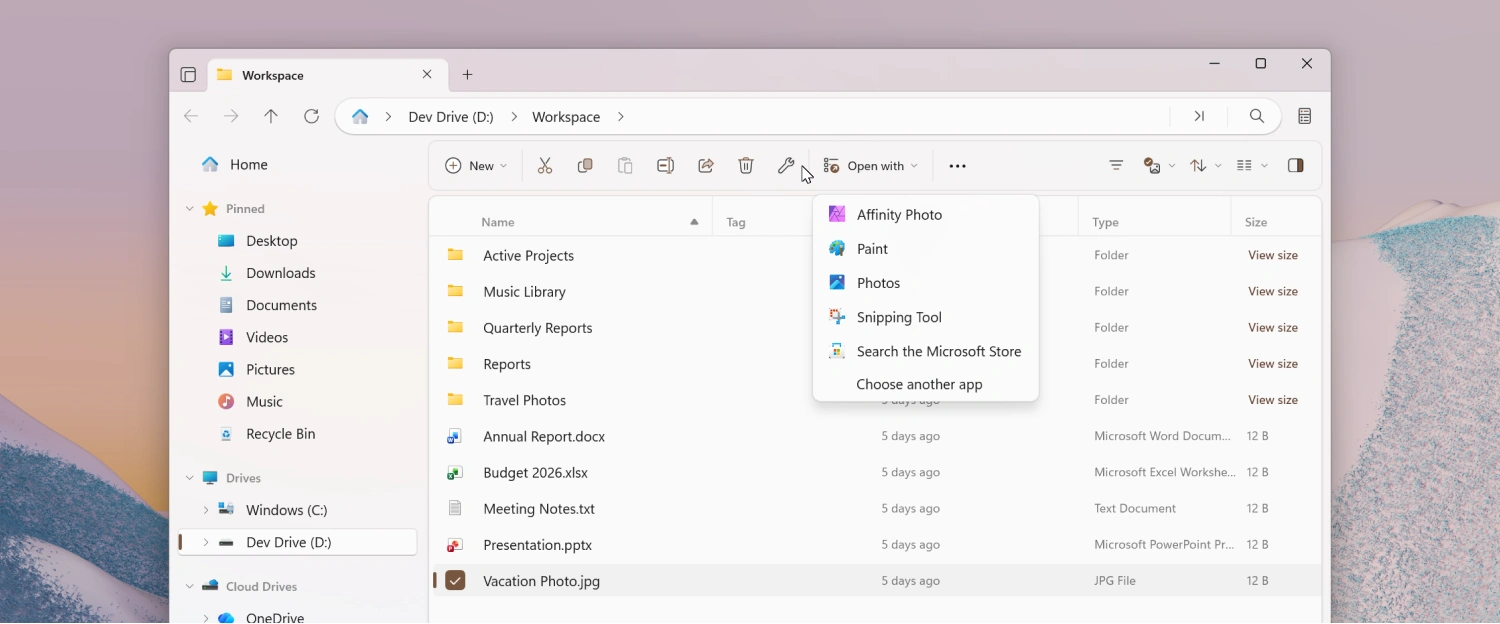
A new Open With flyout has been added to the toolbar, giving you quick access to the apps that can open the currently selected file.
To enable the Open with… button:
- Right-click the toolbar and select Customize toolbar.
- Expand the Open group on the left.
- Drag Open With… to the list of added toolbar items.
Drag a tab to create a new pane
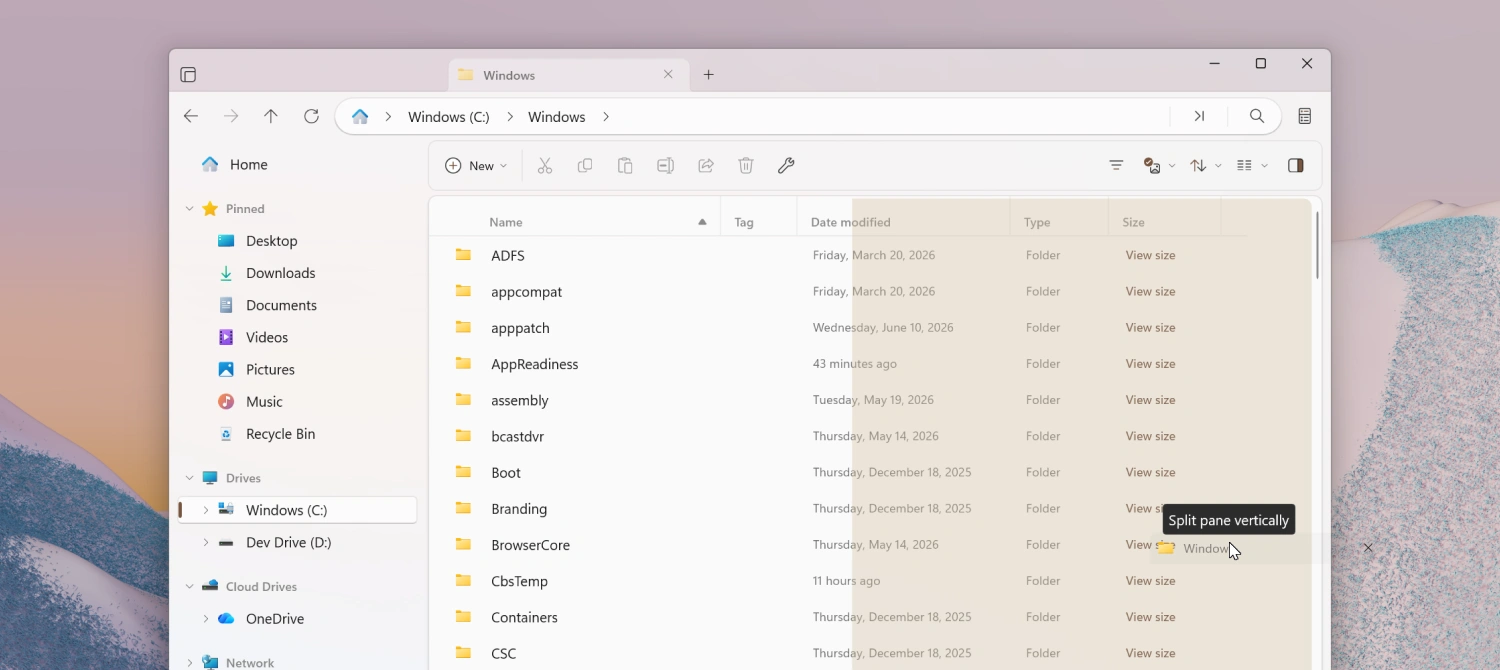
You can now open a second pane by dragging a tab. Drop the tab on the left or right side of the file area for a vertical split, or on the top or bottom for a horizontal split, making it even easier to work with multiple locations at once.
Open folders in the other pane
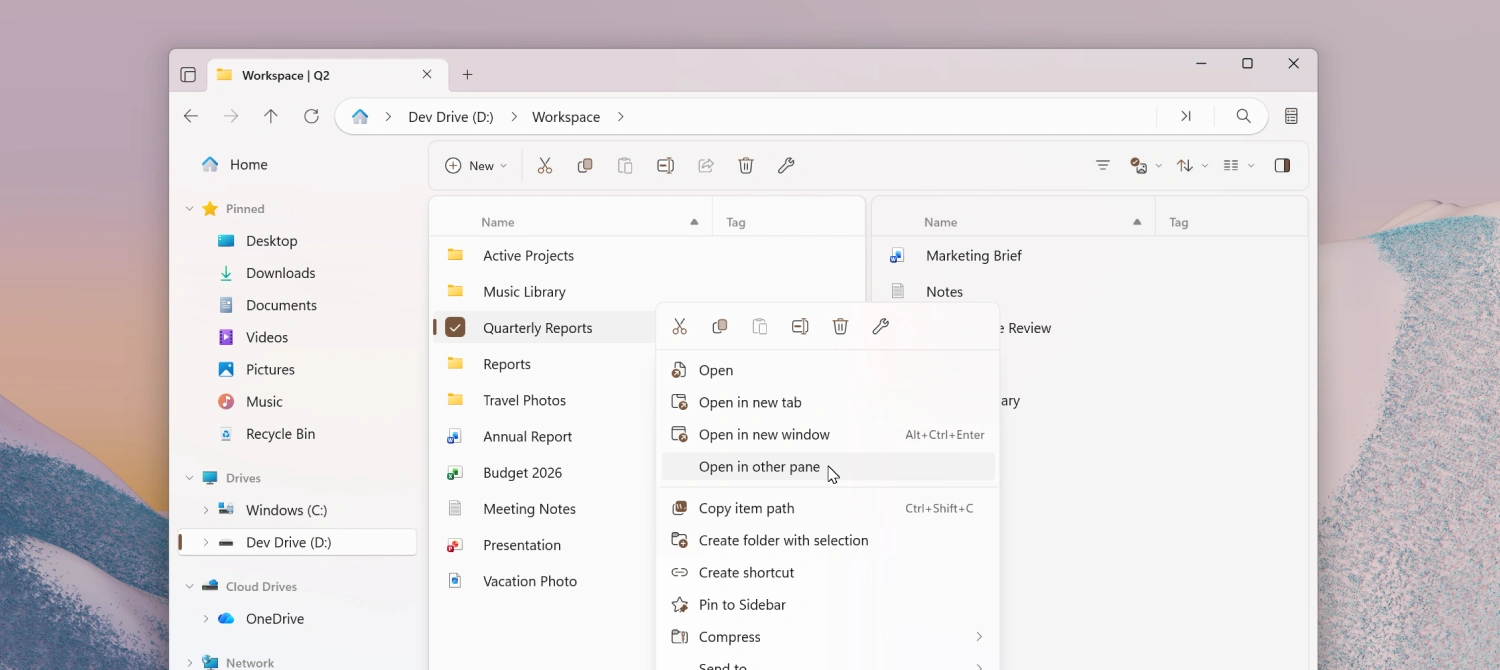
A new Open in other pane action lets you open the currently selected folder in the other pane. This action is available when multiple panes are open in dual pane mode and can be accessed from the right-click context menu and Command Palette. You can also assign it a keyboard shortcut from the Actions page in Settings.
Open in new pane improvements
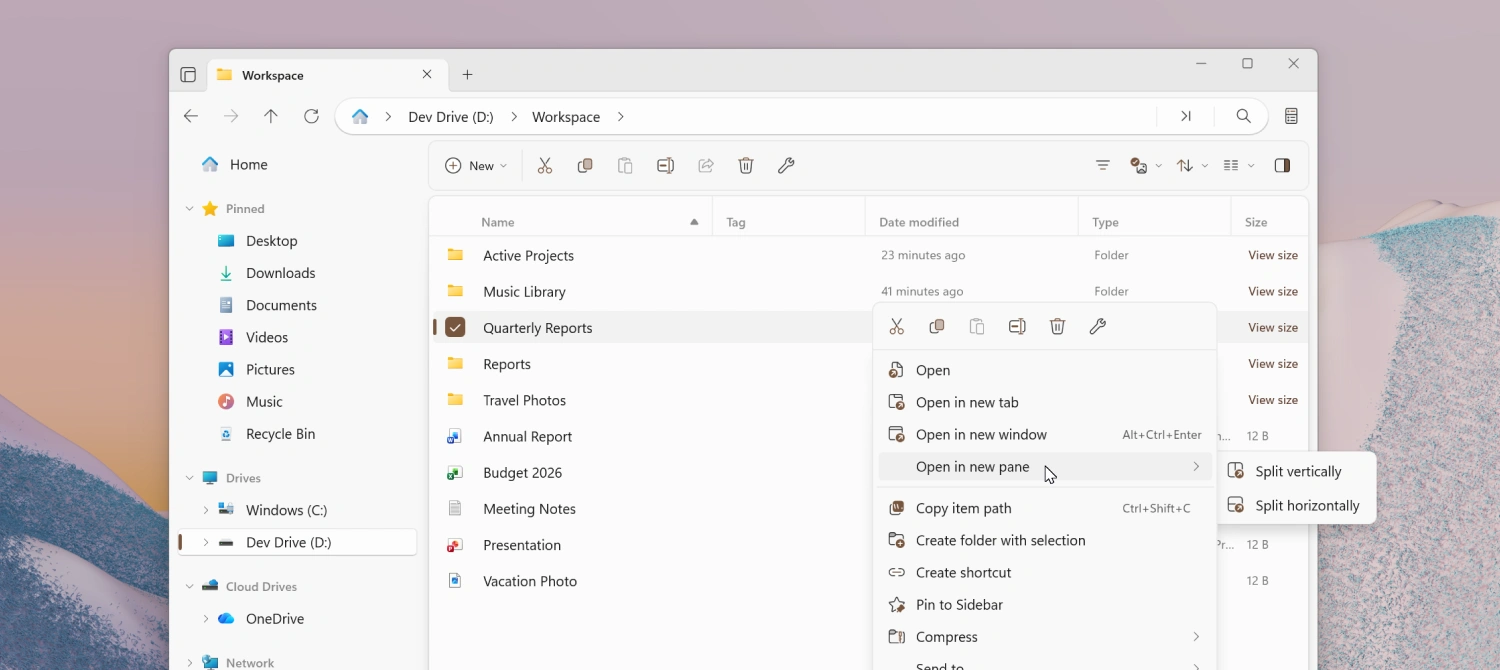
The Open in new pane context menu entry has been reorganized to let you choose the arrangement of the new pane. This action is available when there is a single pane and can be accessed from the right-click menu and Command Palette. You can also assign it a keyboard shortcut from the Actions page in Settings.
Always show file extensions when renaming
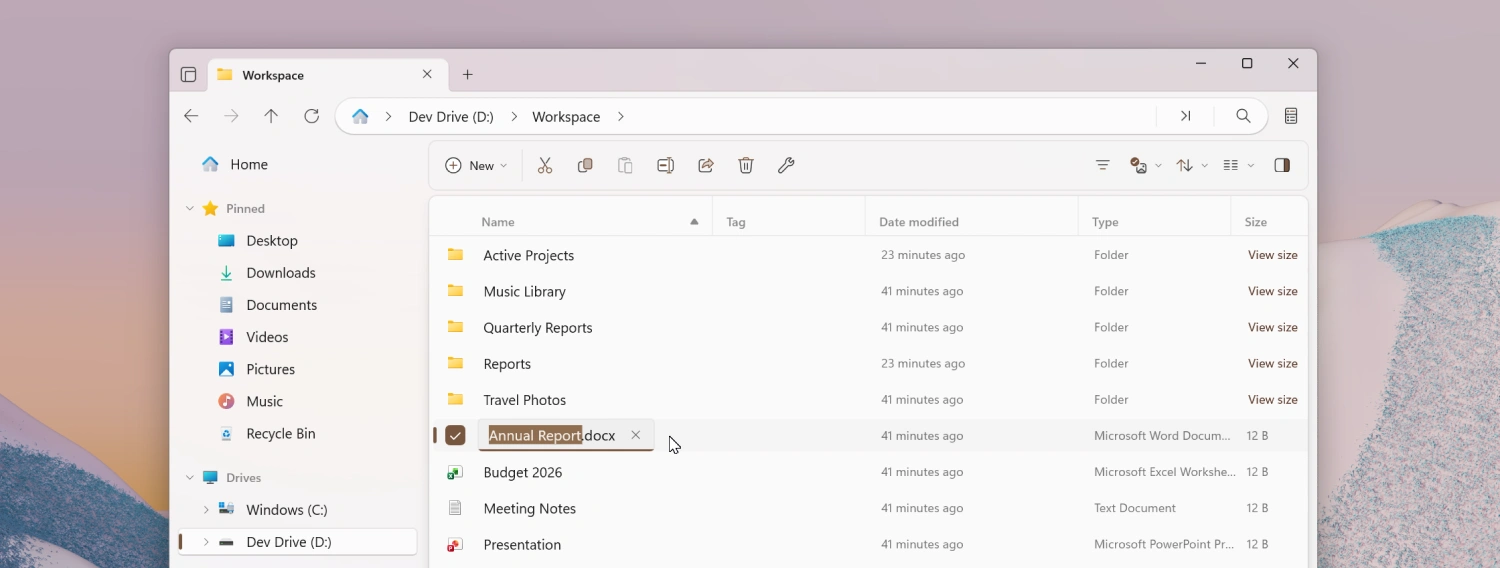
When you rename a file, the file extension is now always shown even when Show file extensions is turned off in Settings. This allows users to easily edit file extensions, while at the same time keeping them hidden in the main file area.
Media file metadata improvements
Editing media file metadata such as title, artists, album, year, and genre has been supported for a while, but until now you could only modify existing metadata. Starting with this release, you can also add metadata to fields that were previously empty.
Modifying album covers has been supported for a while as well. Starting with this release, we added support for removing existing album covers. To remove an album cover, click the thumbnail preview in the Details page in Properties and click Remove album cover.
Breadcrumb bar improvements
The breadcrumb bar has picked up a few refinements in this release:
- A chevron is now shown after the last item in the breadcrumb bar for a more consistent look.
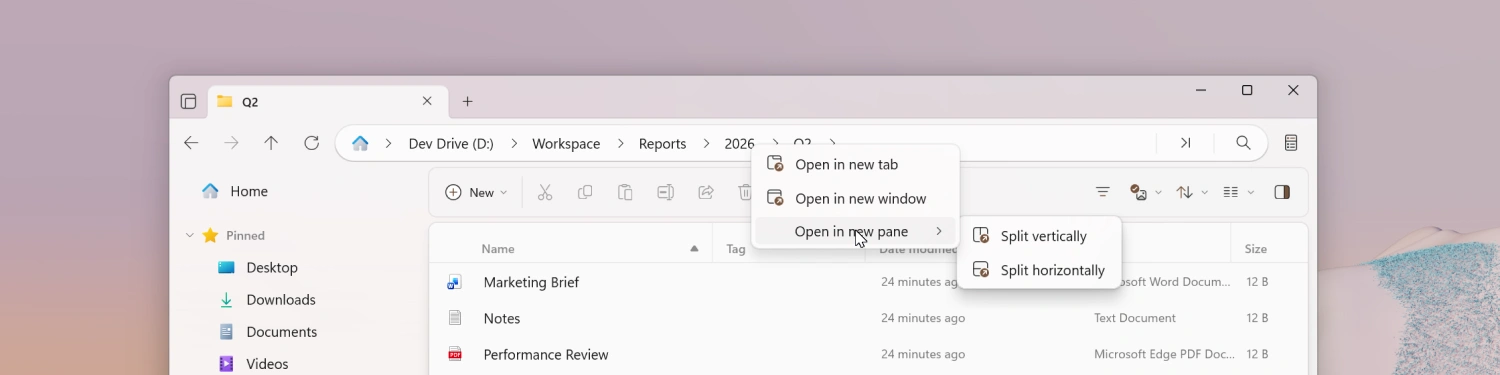
- Right-clicking a breadcrumb now shows context menu options to open the folder in a new tab, new window, or new pane.
Search in Toolbar Customization
The Toolbar Customization window now includes a search box that filters the list of available items as you type, making it easier to find a specific action when you are customizing the toolbar.
To open Toolbar Customization, right-click the toolbar and select Customize toolbar.
Cycle layouts with the scroll wheel
Ctrl + scroll on the file area already resizes items within the current layout. Starting with this release, once you reach the smallest or largest size, continuing to scroll now advances to the next layout mode instead of stopping, letting you move between all layouts.
Reverse tab scroll direction
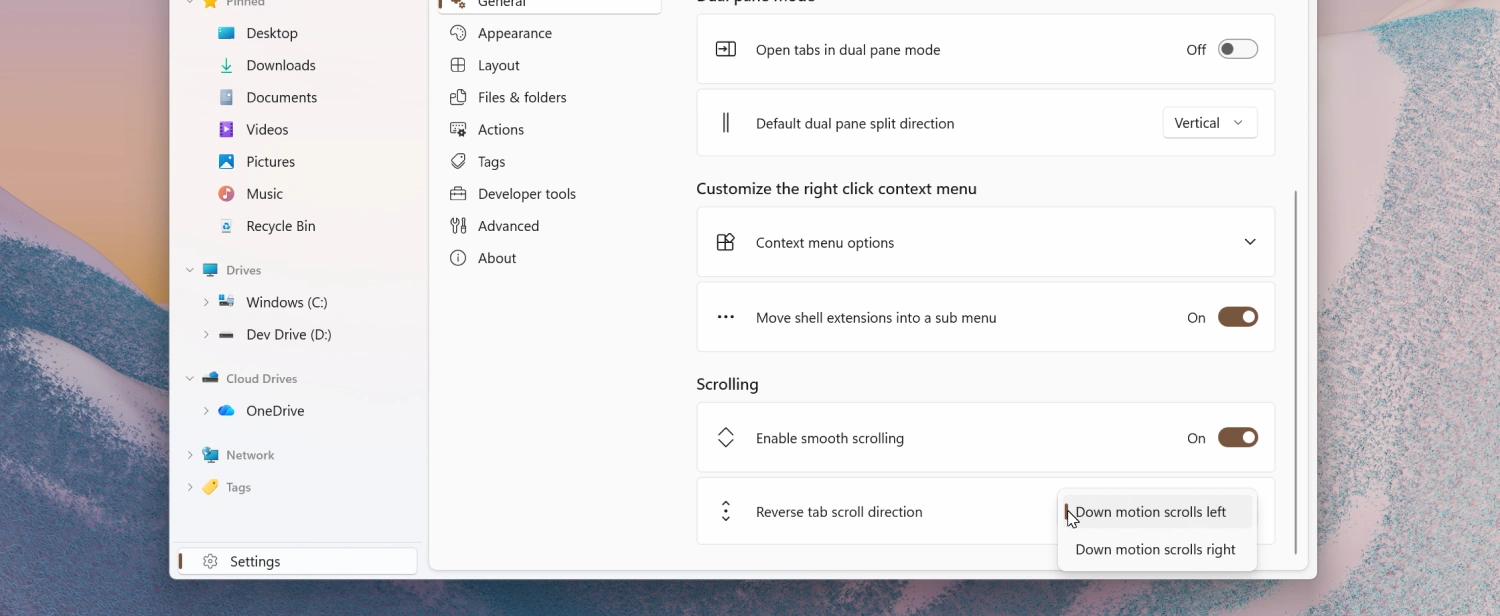
A new setting under General > Scrolling lets you reverse the tab scroll direction when using the mouse wheel over the tab bar.
Improved tab tear off
When you drag a tab out of the tab bar to create a new window, the new window now opens at the position where you dropped the tab.
Improved continue where you left off
The startup behavior for Continue where you left off has been improved so that previously opened tabs are restored more reliably and in the correct order across sessions.
Network Discovery banner
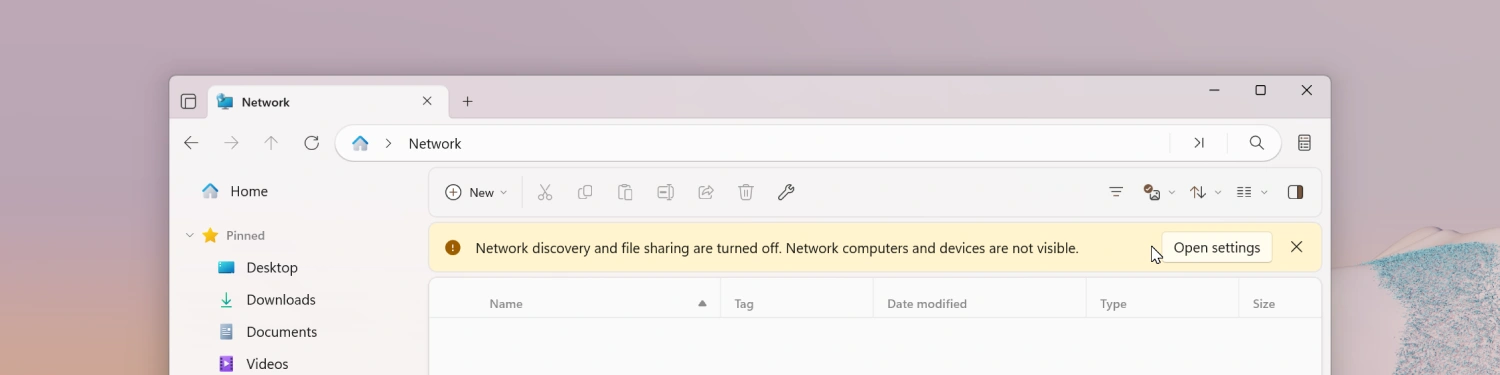
When Network Discovery is turned off in Windows, Files now displays a banner in the Network page letting you know that some network locations may not appear.
Other highlights
- Items inside the Windows Fonts folder now show proper thumbnails, so you can preview a font’s appearance directly from the file list.
- Creating a new archive now automatically selects it.
- The File In Use dialog now includes a Skip button.
Fixes
- Fixed an issue where the Command Palette would sometimes show duplicate entries.
- Fixed an issue where focusing a pane via the Command Palette didn’t work as expected.
- Fixed an issue where drag and hover behavior didn’t work correctly in the sidebar.
- Fixed an issue where the shortcut overlay icon was rendered too large.
- Fixed an issue where the Open with option appeared in the context menu when multiple items were selected.
- Fixed an issue where right-clicking a folder in Columns View would open it.
- Fixed an issue where opening shell flyouts sometimes closed the context menu.
- Fixed an issue where the Omnibar would sometimes lose focus.
- Fixed an issue where launching Files from the command line didn’t work correctly in some scenarios.
- Fixed an issue where keyboard shortcuts didn’t work on the Release Notes page.
- Fixed an issue where toolbar buttons were sometimes missing.
- Fixed an issue with keyboard focus in Columns View.
- Fixed an issue where archives weren’t displayed in the Recent Files widget.
- Fixed an issue where a pinned library didn’t display correctly in the sidebar.
- Fixed an issue where shortcuts weren’t displayed in search results.
Conclusion
As always, we appreciate your feedback and suggestions on how to improve Files. You can reach us on Discord and on GitHub.
Thank you for using Files! :)
Download Files from the Microsoft Store | Sponsor us on GitHub