
Today we are releasing Files Preview v4.1.5 for users of the preview version.
An update icon should be displayed in the top right corner of the app for existing users, while new users can get started from our download page. Additionally, you can help support the project by purchasing Files on the Microsoft Store or by sponsoring us on GitHub. Your support is greatly appreciated but entirely optional.
What’s New in Files v4.1.5
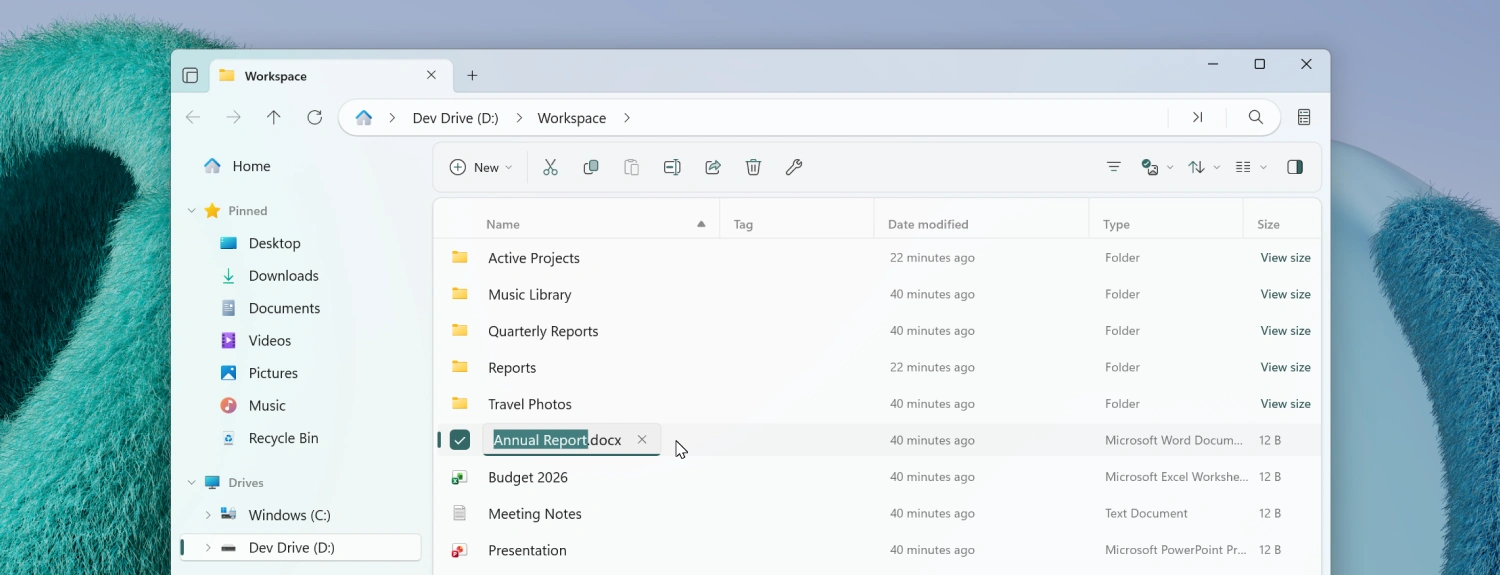
Always show file extensions when renaming
When you rename a file, the file extension is now always shown even when Show file extensions is turned off in Settings. This allows users to easily edit file extensions, while at the same time keeping them hidden in the main file area.
Add metadata to media files
Editing media file metadata such as title, artists, album, year, and genre has been supported for a while, but until now you could only modify existing metadata. Starting with this release, you can also add metadata to fields that were previously empty.
Remove album covers from media files
Modifying album covers has been supported for a while. Starting with this release, we added support for removing existing album covers. To remove an album cover, click the thumbnail preview in the Details page in Properties and click Remove album cover.
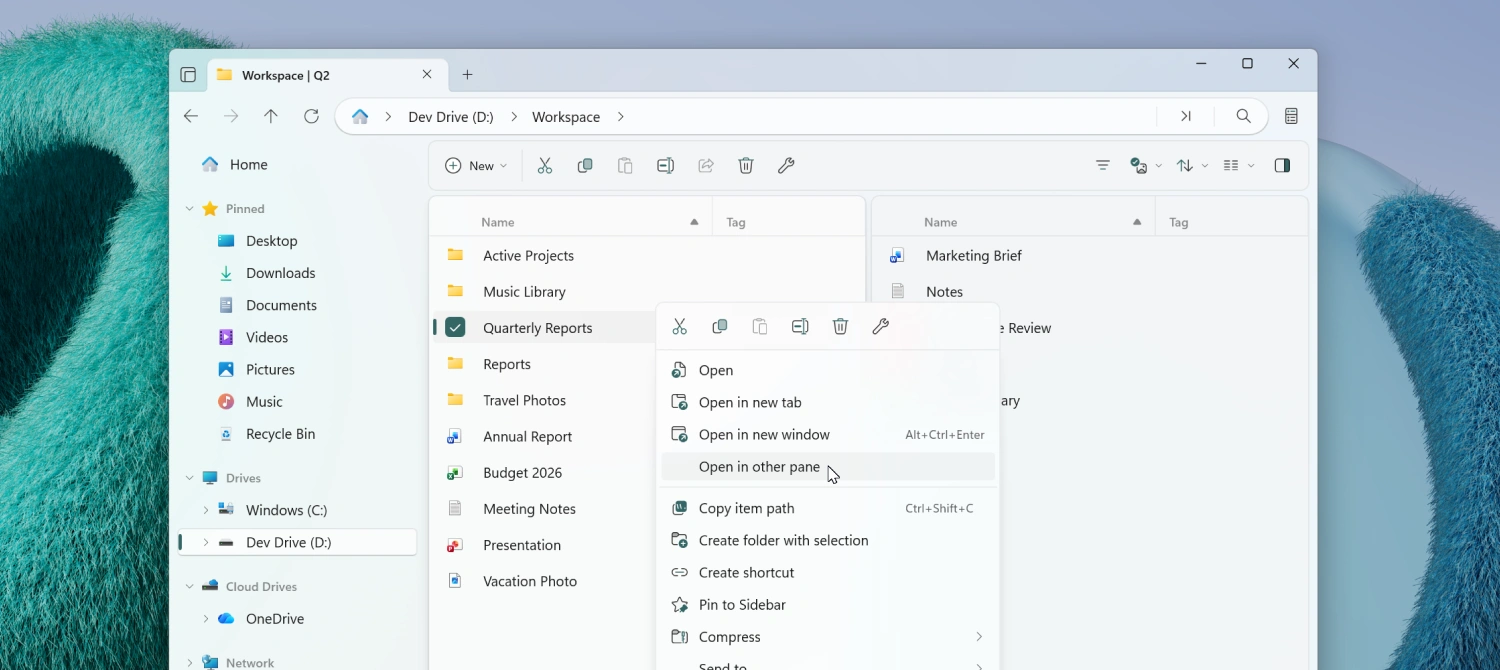
Open folders in the other pane
A new Open in other pane action lets you open the currently selected folder in the other pane. This action is available when multiple panes are open in dual pane mode and can be accessed from the right-click context menu and Command Palette. You can assign it a keyboard shortcut from the Actions page in Settings.
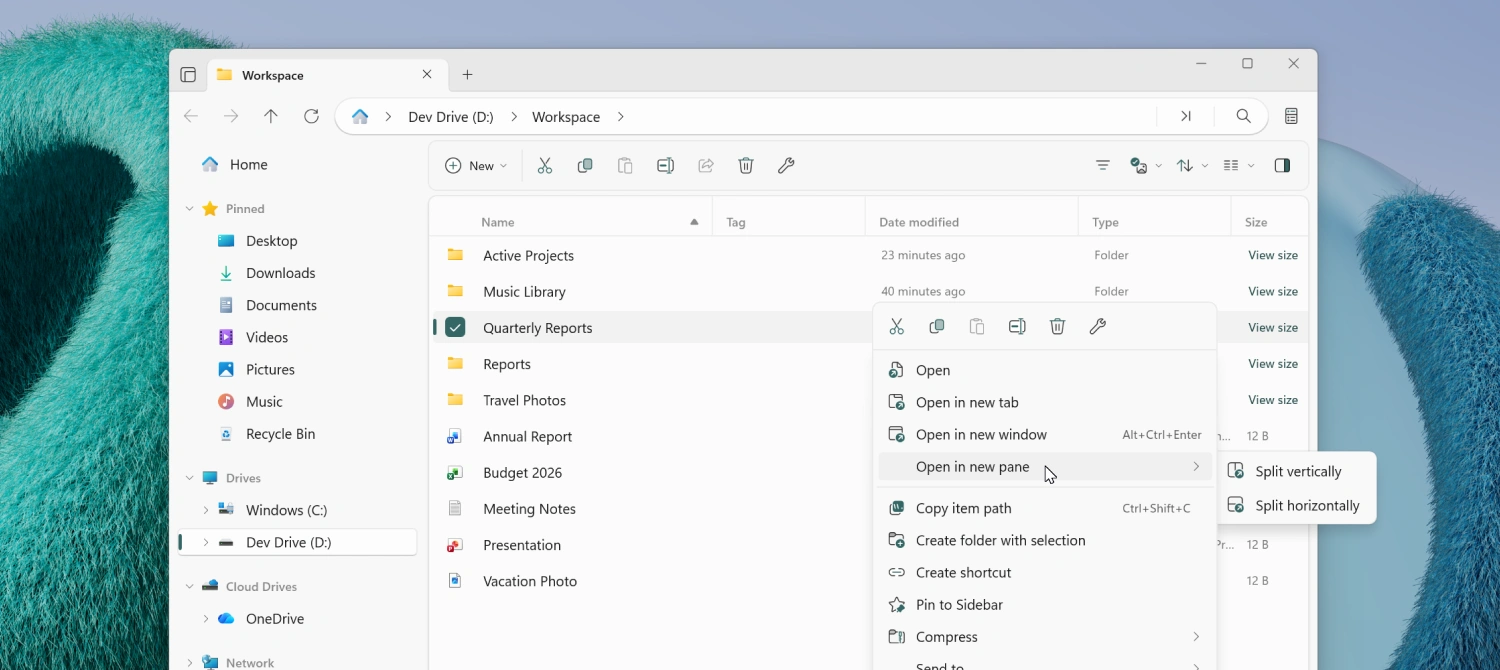
Open in new pane improvements
The Open in new pane context menu entry has been reorganized to let you choose the arrangement of the new pane. This action is available when there is a single pane and can be accessed from the right-click menu and Command Palette. You can assign it a keyboard shortcut from the Actions page in Settings.
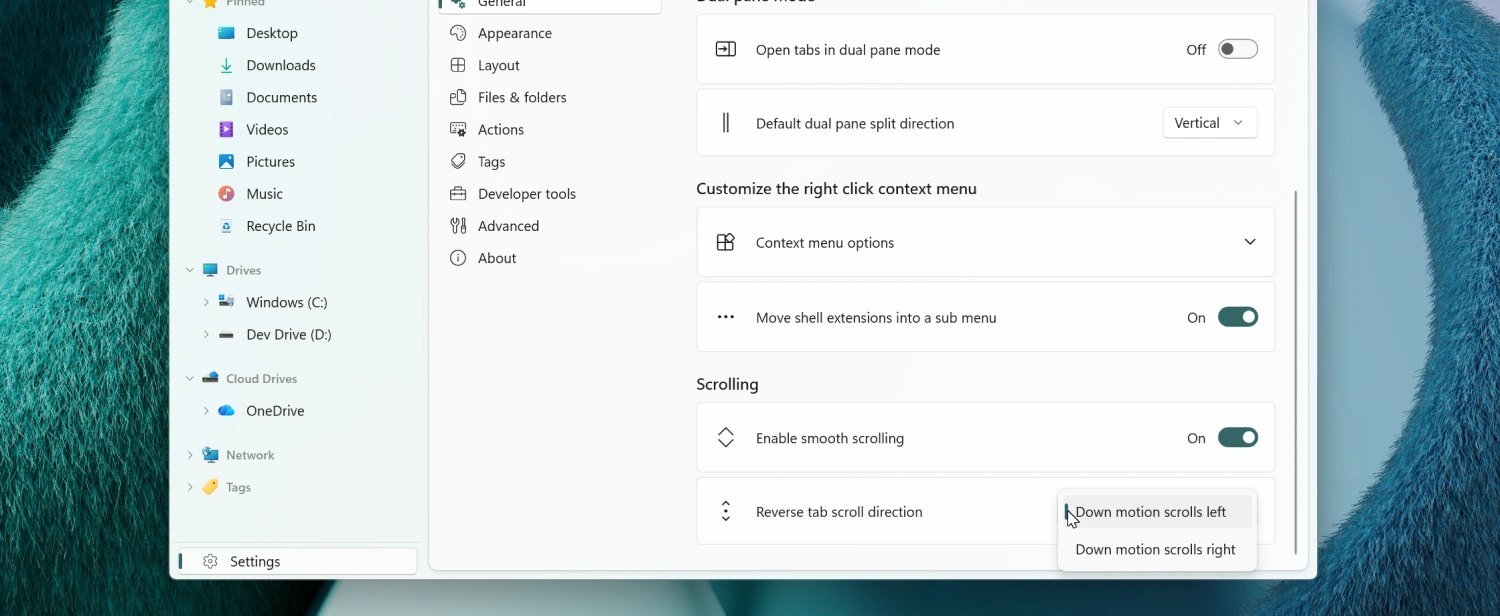
Reverse tab scroll direction
A new setting under General > Scrolling lets you reverse the tab scroll direction when using the mouse wheel over the tab bar.
Breadcrumb bar improvements
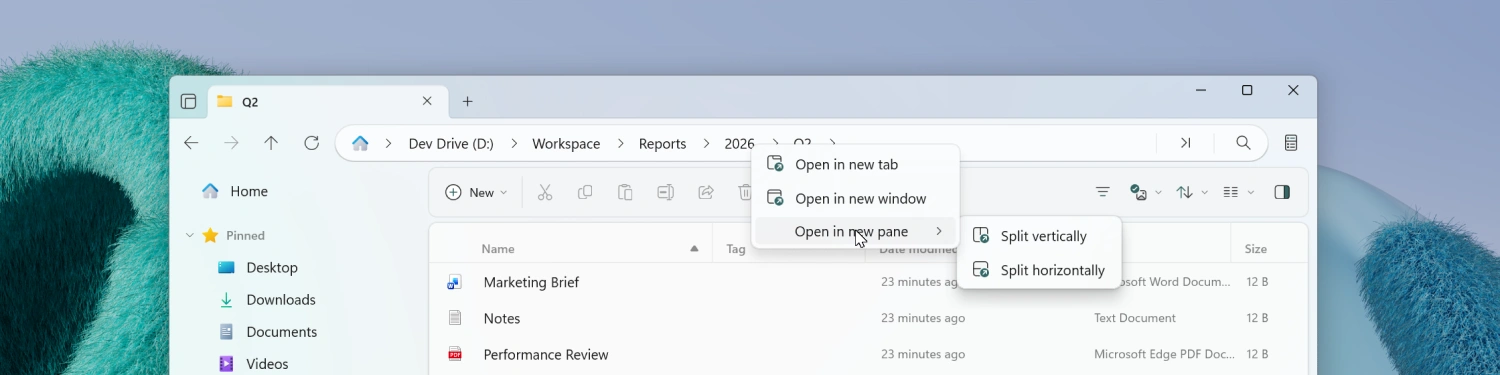
The breadcrumb bar has picked up a few refinements in this release:
- A chevron is now shown after the last item in the breadcrumb bar for a more consistent look.
- Right-clicking a breadcrumb now shows context menu options to open the folder in a new tab, new window, or new pane.
Archive selection
Creating a new archive now automatically selects it.
Fixes
- Fixed an issue where the Command Palette would sometimes show duplicate entries.
- Fixed an issue where focusing a pane via the Command Palette didn’t work as expected.
- Fixed an issue where drag and hover behavior didn’t work correctly in the sidebar.
- Fixed an issue where the shortcut overlay icon was rendered too large.
- Fixed an issue where the Open with option appeared in the context menu when multiple items were selected.
- Fixed an issue where right-clicking a folder in Columns View would open it.
- Fixed an issue where opening shell flyouts sometimes closed the context menu.
- Fixed an issue where the Omnibar would sometimes lose focus.
Conclusion
As always, we appreciate your feedback and suggestions on how to improve Files. You can reach us on Discord and on GitHub.
Thank you for using Files! 😊
Download Files Preview from the Microsoft Store | Sponsor us on GitHub